WordPress tutorial – अगर आप भी अपनी खुद की वेबसाइट बनाना चाहते हैं और WordPress सीखना चाहते हैं तो यह गाइड आपके लिए बिल्कुल परफेक्ट है! मैं खुद 5 साल से WordPress पर काम कर रहा हूं और 50+ websites बना चुका हूं, इस अनुभव से मैं आपको वो सब बताऊंगा जो मुझे शुरुआत में पता होना चाहिए था!
इस आर्टिकल में आपको सीखने को मिलेगा कि WordPress क्या है, कैसे इसे setup करें, किन गलतियों से बचें जो 90% beginners करते हैं, और कैसे आप professional website बना सकते हैं! सबकुछ step by step, बिना किसी technical jargon के, ताकि आपको बाद में किसी समस्या से जूझना ना पड़े!
अगर आप इस समय WordPress सीखना शुरू करते हैं तो यह जानना जरूरी है कि WordPress सिर्फ blogging के लिए नहीं है – आप इससे e-commerce store, membership site, portfolio, business website कुछ भी बना सकते हैं! दुनिया की 43% websites WordPress पर चलती हैं और इसकी demand हर दिन बढ़ रही है!
Table of Contents
WordPress क्या है WordPress Tutorial 2026
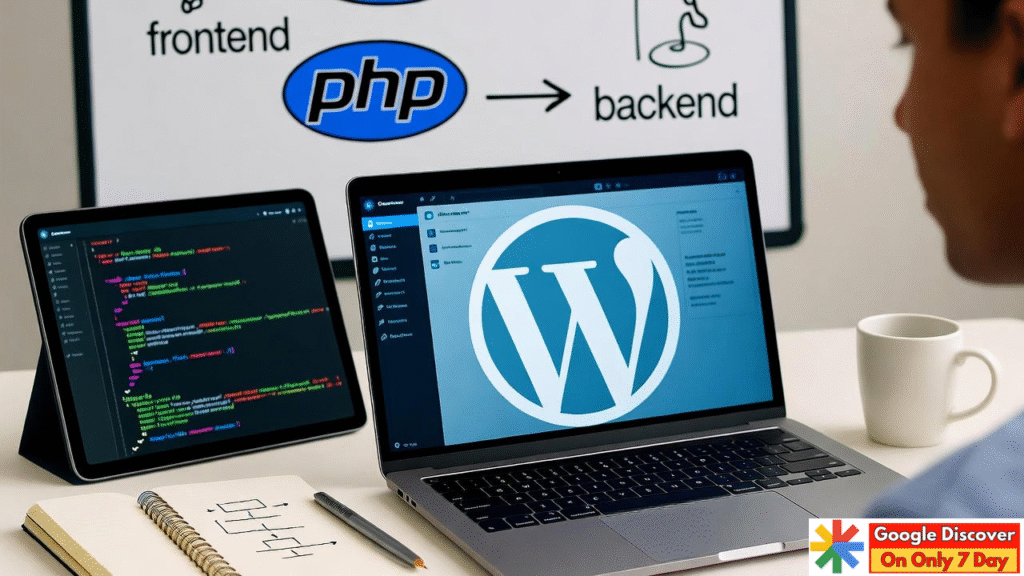
WordPress एक CMS (Content Management System) है जो PHP और MySQL database पर काम करता है। आसान भाषा में समझें – यह एक ऐसा software है जो आपको बिना coding सीखे website बनाने देता है!
Real Example: जैसे आप Microsoft Word में document बनाते हैं बिना programming जाने, वैसे ही WordPress में website बनाते हैं! आप बस buttons click करते हैं, text लिखते हैं, images add करते हैं और आपकी website ready हो जाती है!
WordPress.com vs WordPress.org – Critical Difference:
- WordPress.com = यह एक hosted service है। यहां आपको free subdomain मिलता है (yoursite.wordpress.com) लेकिन आप ads नहीं लगा सकते, plugins install नहीं कर सकते, और full control नहीं है।
- WordPress.org = यह self-hosted है। आपको खुद hosting और domain खरीदना पड़ता है लेकिन complete freedom मिलती है! आप कुछ भी कर सकते हैं – ads लगा सकते हैं, plugins install कर सकते हैं, customize कर सकते हैं। यही हम इस tutorial में use करेंगे!
क्या WordPress सीखना 2026 में फायदेमंद है?

मैं आपको honest बताता हूं – हां, बहुत फायदेमंद है!
WordPress सीखने के Real Benefits:
- Freelancing Opportunities – Upwork, Fiverr, Freelancer पर WordPress developers की भारी demand है। Entry-level में ₹500-1000 per hour charge कर सकते हैं!
- Job Opportunities – हर company को website चाहिए। Entry-level salary ₹20,000-30,000 per month से शुरू होती है।
- Own Business – अपनी खुद की website बनाकर affiliate marketing, blogging, e-commerce कर सकते हैं।
- Low Investment – Coding languages सीखने में महीनों लगते हैं, WordPress में 1-2 महीने में आप professional websites बना सकते हैं!
But Reality Check: WordPress तो सीख जाओगे 1-2 महीने में, लेकिन पैसा कमाने के लिए SEO, content writing, design sense भी चाहिए! Competition बढ़ गया है, quality work करना होगा!
Step 1: WordPress के लिए Right Hosting कैसे चुनें?
यह सबसे important decision है! मैंने शुरुआत में सस्ती hosting ली थी (₹99/month) और बाद में बहुत पछताया – website हर दिन down रहती थी, loading speed बहुत slow थी!
Hosting चुनते समय यह 5 चीजें देखें:
- Uptime – 99.9% से कम मत लो
- Speed – Server response time 200ms से कम होना चाहिए
- Support – 24/7 support चाहिए
- Backups – Automatic daily backups होने चाहिए
- Scalability – Traffic बढ़ने पर hosting upgrade हो सके
Realistic Hosting Budget:Hostinger Web hosting Review In Hindi 2025– Pros and Cons ?
- ₹200-500/month – Hostinger, Bluehost की basic plans (beginners के लिए perfect)
- ₹500-1500/month – Mid-level plans जो 20-30k monthly visitors handle कर सकें
मेरी Personal Recommendation: Hostinger की Premium Web Hosting (₹219/month) – speed अच्छी है, support responsive है, और beginners के लिए perfect है!
WordPress Installation – Real Process
Step 1: Hosting खरीदने के बाद cPanel में login करें
Step 2: Softaculous Apps Installer ढूंढें और WordPress icon पर click करें → Install Now
Critical Settings:
- Choose Protocol: HTTPS:// select करें
- In Directory: खाली छोड़ें! यह सबसे बड़ी गलती है – अगर “wordpress” लिख दिया तो site yoursite.com/wordpress पर खुलेगी!
- Admin Username: “admin” मत रखें! 90% hacking attempts “admin” username try करते हैं
- Admin Password: Strong password (12+ characters, numbers, symbols, uppercase, lowercase)
- Admin Email: Valid email दें
Step 3: Install पर click करें → 2-3 minutes wait करें
Step 4: Installation complete! अब yoursite.com/wp-admin से login करें!
Step 2: WordPress Dashboard को समझें
Dashboard में बहुत सारे options दिखेंगे। मैं आपको बता देता हूं कि 95% time में केवल 7-8 features ही use होते हैं!
Daily Use होने वाले Sections:
1. Posts – Blog posts लिखने के लिए (सबसे ज्यादा use होगा)
2. Media – Images, videos upload करने के लिए
3. Pages – About, Contact जैसे static pages के लिए
4. Appearance – Theme install/change करने के लिए, Menus बनाने के लिए
5. Plugins – Extra features add करने के लिए
6. Settings – Site name, URL structure, timezone set करने के लिए (बहुत important!)
Pro Tip: Dashboard के top में “Screen Options” button से unnecessary boxes hide कर सकते हो!
Step 3: Theme Selection – यह आपकी सबसे बड़ी गलती हो सकती है!
मैंने शुरुआत में यह गलती की थी – बहुत fancy theme install कर ली जिसमें 1000 features थे। Result? Website की loading time 8 seconds थी!
Theme चुनते समय 3 Golden Rules:
Rule 1: Speed > Beauty – Theme fast load होना चाहिए, 50 animations की जरूरत नहीं!
Rule 2: Mobile Responsive – 60-70% visitors mobile से आते हैं!
Rule 3: Regular Updates – अगर theme 1-2 साल से update नहीं हुई तो skip करें!
Best Free Themes (मैंने personally सब use किए हैं):
1. Astra (मेरी #1 recommendation)
- Super lightweight (less than 50KB!)
- बहुत fast load होता है
- Blog, business website, portfolio – सबकुछ के लिए perfect
- Free version में 90% features हैं
2. GeneratePress
- Astra से भी lightweight
- Serious bloggers के लिए best
- Long-term growth के लिए perfect
3. Kadence
- Pre-built templates free में
- जल्दी website launch करने के लिए अच्छा
- Gutenberg editor के साथ बहुत अच्छा काम करता है
Avoid These Mistakes:
❌ “All-in-one” themes install करना (बहुत heavy होते हैं) ❌ Nulled/Pirated themes download करना (security risk!) ❌ हर महीने theme change करना (SEO को नुकसान)
Theme Installation
Dashboard → Appearance → Themes → Add New
- “Astra” search करें
- Install button पर click करें
- Activate button पर click करें
Astra activate करने पर “Install Starter Templates” का option आएगा:
- अगर quickly website बनानी है → Install starter templates
- अगर scratch से customize करना है → Skip करें
यह भी पढ़े –How to start blogging 2026- कैसे शुरू करे अपना ब्लॉग ?
Step 4: Essential WordPress Plugins (केवल 6 चाहिए!)
यहां सबसे बड़ी गलती होती है – लोग 30-40 plugins install कर लेते हैं! आपको केवल 6-8 plugins चाहिए!
Plugin 1: Rank Math SEO (Must Have)
- Google में rank करने में मदद करता है
- Setup: Install → Activate → Setup Wizard follow करें
- Free version में सबकुछ है
Plugin 2: LiteSpeed Cache (Speed के लिए)
- Website को cache करके fast बनाता है
- मेरी website 4 seconds से 1.2 seconds में load होने लगी!
- Setup: Install → Activate → Enable Cache
Plugin 3: UpdraftPlus (Backup – Life Saver!)
- Automatic backups लेता है
- Setup: Schedule daily backups, Google Drive connect करें
- मैंने एक बार website crash होने पर इससे 5 minutes में restore किया!
Plugin 4: Wordfence Security
- Hackers से बचाता है
- हर दिन 90,000+ WordPress sites hack होती हैं!
- Setup: Install → Activate → Email verification करें
Plugin 5: WPForms (Contact Form)
- Contact forms बनाता है
- Setup: Simple Contact Form template use करें
Plugin 6: Smush (Image Optimization)
- Images को compress करता है
- 500KB images 80-100KB में convert हो जाती हैं
Common Mistakes: ❌ 5-6 SEO plugins install करना (केवल एक चाहिए!) ❌ Multiple caching plugins (conflict करते हैं) ❌ Unused plugins रखना (delete कर दो!)
Step 5: WordPress Settings – Critical for SEO!
General Settings (Settings → General)
- Site Title: “Shyam’s Tech Blog – Mobile & Laptop Reviews” (Google में यह दिखेगा)
- Tagline: “Honest Tech Reviews in Hindi” (descriptive रखो)
- Timezone: Asia/Kolkata select करें
Permalink Settings (बहुत Important!)
Settings → Permalinks → Post name select करें
यह SEO के लिए best है: yoursite.com/post-name/
⚠️ WARNING: Website launch के बाद permalink structure KABHI change मत करना! All URLs break हो जाएंगे!
Reading Settings
Settings → Reading
- A static page select करें
- Homepage: “Home” page select करें
- Posts page: “Blog” page select करें
- Search Engine Visibility: UNCHECKED रखें (ताकि Google में show हो)
Discussion Settings
- Comment Moderation: “Comment must be manually approved” check करें (spam से बचने के लिए)
Step 6: Essential Pages बनाएं
हर Website में ये 5 Pages होने चाहिए:
1. Home Page – Hero section, about section, latest posts
2. About Us – अपने बारे में, mission, experience Template:
Namaste! मैं [Name] हूं। [Site Name] मैंने [Year] में शुरू किया।
इस blog पर आपको मिलेगा: [Topics]
Connect: [Email]
3. Contact Us – WPForms से contact form add करें, email address दें
4. Privacy Policy – Settings → Privacy → Create New Page (WordPress automatic template देगा)
5. Disclaimer – अगर product reviews या affiliate marketing करते हो तो mandatory
Appearance → Menus
Ideal Structure:
Home
About
Blog
Contact
Steps:
- Create New Menu: “Main Menu”
- Left side से pages select करें → Add to Menu
- Drag करके order change करें
- Primary Menu location select करें
- Save Menu
Pro Tips:
- Maximum 5-7 items (ज्यादा confusing होते हैं)
- Simple names रखो
- Mobile पर test करो
Step 8: First Blog Post कैसे लिखें (जो Rank करे!)
Posts → Add New
Title Writing Formula
Bad: “WordPress Tutorial” (boring) Good: “WordPress Tutorial in Hindi – Complete Guide for Beginners 2026”
Formula: [Main Keyword] – [Benefit/Promise] + [Year]
URL Structure
Default (लंबा): yoursite.com/wordpress-tutorial-in-hindi-complete-guide-for-beginners-2026
Optimized: yoursite.com/wordpress-tutorial-hindi
Rules: Maximum 3-5 words, main keyword जरूरी हो
Introduction (First 100 Words = Critical!)
Hook Formula:
[Problem बताओ] → [Promise दो] → [Credibility बताओ] → [Overview दो]
Example: “WordPress tutorial – अगर आप भी website बनाना चाहते हैं लेकिन coding नहीं आती तो परेशान मत होइए! इस guide में सीखेंगे installation से first post तक सबकुछ। मैं 5 साल से WordPress use कर रहा हूं और 50+ websites बना चुका हूं।”
Content Structure
H2 (Main Sections) – 5-7 sections H3 (Sub-sections) – H2 के अंदर detail
Minimum Length: 1500-2000 words
Content Writing Tips:
- Short Paragraphs (3-4 lines maximum) – लोग scan करते हैं!
- Lists Use करो – bullet points readable होते हैं
- Examples दो – theory नहीं, practical!
- Personal Experience Share करो – यह आपको अलग बनाता है
- Internal Links (2-3 per post) – अपने दूसरे posts link करो
- External Links (2-3) – authoritative sources को
Images Add करना
कितनी चाहिए: हर 300-400 words के बाद 1 image
Guidelines:
- File Size: Maximum 200KB
- File Name: wordpress-dashboard-screenshot.jpg (descriptive)
- Alt Text: “WordPress Dashboard showing navigation menu” (SEO के लिए)
Free Sources: Unsplash.com, Pexels.com
SEO Optimize करना (Rank Math)
Focus Keyword Add करें
Score 70+ Target करो: ✅ Keyword title में है? ✅ Keyword first 100 words में है? ✅ Meta description लिखा है? (150-160 characters) ✅ Images में alt text है? ✅ Internal links हैं? ✅ Content length 1000+ words है?
Categories और Tags
Categories: Broad हों (WordPress Tutorials, SEO Tips) Tags: Specific keywords (wordpress installation, wordpress themes)
Publish!
Immediately करो:
- Google Search Console में submit करो
- Social media पर share करो
- पुरानी posts में internal links add करो
यह भी पड़े – Website Ka SEO Kaise Kare – Complete Guide 2026
Step 9: WordPress Speed Optimization
Speed Test Tools:
- PageSpeed Insights – Target: 75+ score
- GTmetrix – Target: Under 2 seconds
- Pingdom – Mumbai server से test करो
Optimization Steps:
- Remove Unnecessary Plugins (10 से ज्यादा = Red Flag!)
- Lazy Load Enable करो (Smush plugin में)
- Database Cleanup (WP-Optimize plugin – monthly करो)
- Limit Post Revisions (wp-config.php में:
define('WP_POST_REVISIONS', 3);) - Use CDN (Cloudflare – free और 30-40% speed improvement)
Step 10: WordPress Security
हर दिन 90,000+ sites hack होती हैं!
Security Checklist:
- Strong Passwords (16+ characters, mixed)
- Change “admin” Username (90% attacks “admin” try करते हैं)
- Two-Factor Authentication (Wordfence plugin में)
- Limit Login Attempts (5 attempts in 20 minutes)
- Regular Backups (UpdraftPlus – test restore भी करो)
- SSL Certificate (HTTPS mandatory – free में hosting से लो)
- Hide WordPress Version
- Disable File Editing (wp-config में)
- Regular Updates (WordPress, plugins, themes – हर हफ्ते check करो)
यह भी पढ़े – Google AdSense Approval के 7 Secret Tricks – 99% लोग नहीं जानते!
पोस्ट का सार
WordPress tutorial पूरा करने के बाद आपको clear हो गया होगा कि WordPress कैसे काम करता है! सबसे पहले hosting खरीदो, WordPress install करो, lightweight theme (Astra) चुनो और essential plugins install करो! Settings properly configure करो, important pages बनाओ, और regular content publish करो!
Security measures लागू करो, speed optimize करो, और SEO पर focus करो! याद रहे WordPress सीखना continuous process है – practice करते रहो और नई चीजें सीखते रहो! शुरुआत में basics को मजबूत करो, advanced features बाद में आ जाएंगे!
दोस्तों आज का हमारा पोस्ट WordPress Tutorial – WordPress Guide for Beginners 2026 पर था मुझे उम्मीद है कि हमने सभी जरूरी चीजें cover कर ली! WordPress एक powerful platform है और अगर सही तरीके से सीखते हैं तो कोई भी website बना सकते हैं! अगर कोई प्रश्न है WordPress के बारे में तो comment करके जरूर पूछें! धन्यवाद!
Google Discover Complete Course
vs same day last week
vs previous 7 days
vs same period last year